
Port Details In Depth
Navigation
You may have a virtually unlimited number of ports in one calculation. Each port can have its own statement of facts attached. The capacity of the program should be sufficient to handle even the most complex voyages.
To easily navigate through the list of ports, use the port menu within the toolbar on the left-hand side.
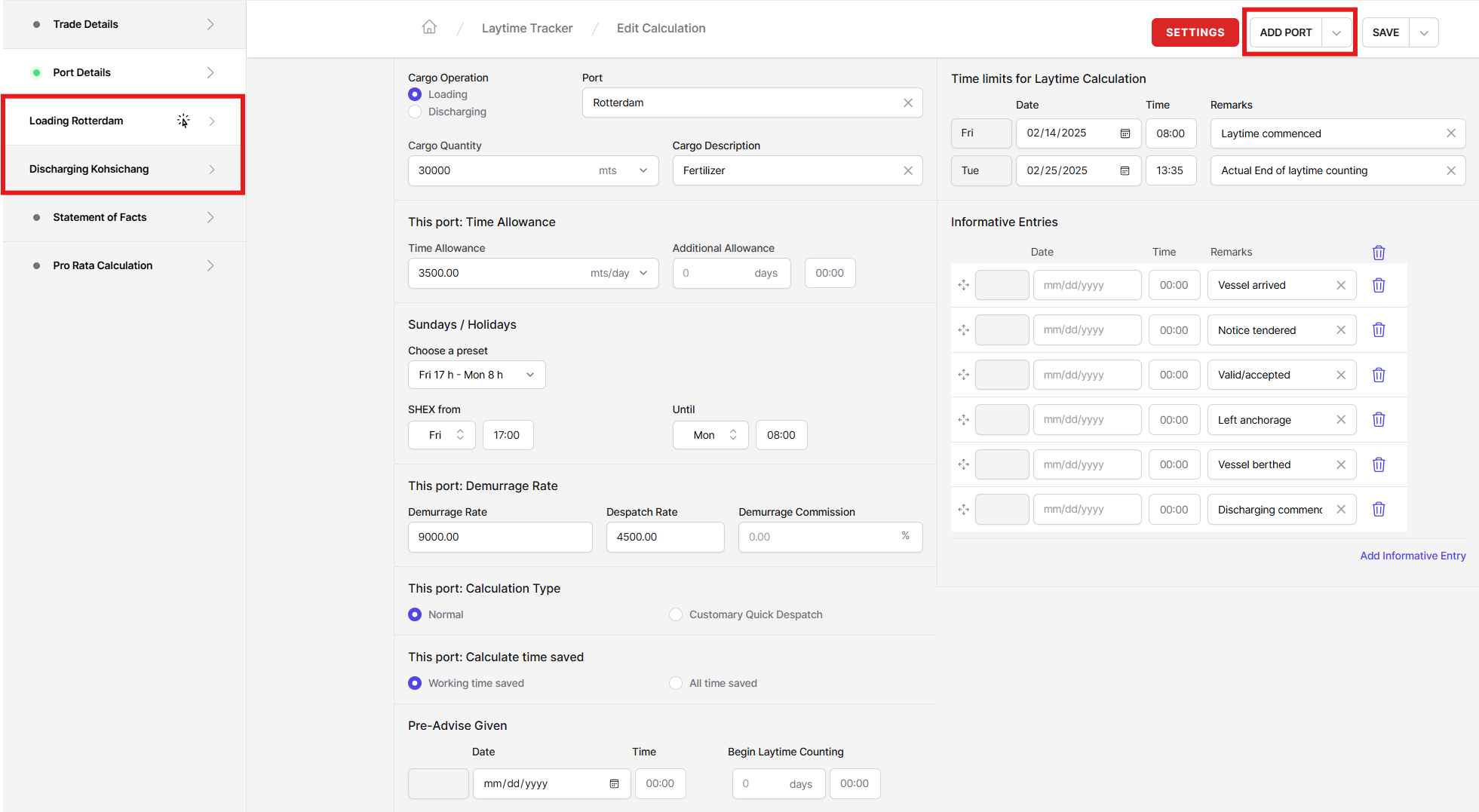
If you add new ports to the calculation the program will sort the ports chronologically based on the date the laytime calculation starts (Time limits for laytime calculation).
Time Allowed and Additional Allowance
The time allowed for a certain port may be either calculated by the cargo quantity and a given loading/discharging rate per day or may be specified as days or hours.
If the charter party allows an additional time or if additional allowance is agreed otherwise you may enter this additional allowance. A typical example would be excess pumping time. The additional allowance will simply be added to the standard time allowance.
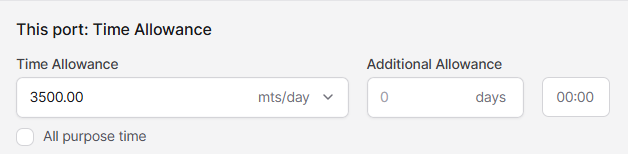
If the port is part of a set of ports which are calculated reversible the additional checkbox All purpose time will be visible.
If All purpose is checked, then the given time allowance is not only for this one port but for all ports in the reversible chain. An example from the tanker business would be "72 hours all purpose loading" regardless how many loading ports are involved. If All purpose time is used the time allowance units must be set to days or hours.
Informative Entries
This section provides space for information about date, time, and description of any event you would like to mention on the printed calculation. A list of typical events is predefined in the templates which are provided with the program, but you may alter or amend events as deemed necessary.
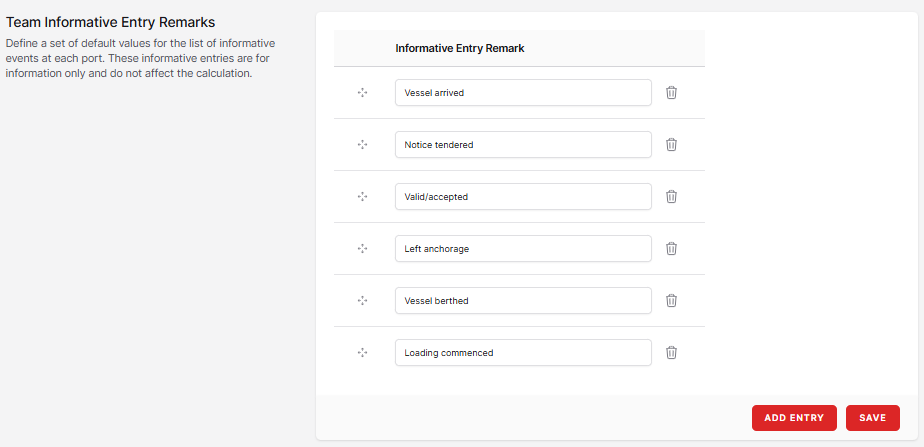
Note: Team defaults for the Informative Entry Remarks, Laytime Start Remarks, and Laytime End Remarks may be defined within the Team Settings page.
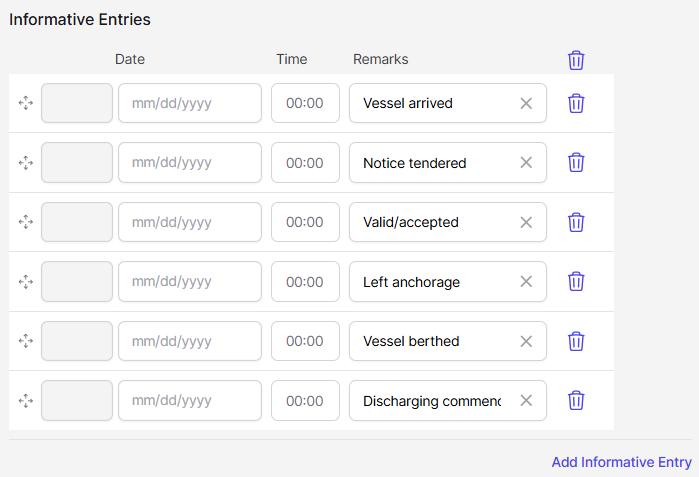
It is important to realize that the information specified here are for information only. The do not affect the calculation or the calculation result by any means. Therefore, this information may be given or omitted as desired. Lines without date/time will be skipped in the result printout.
Pre-advise
The pre-advise is to be seen in conjunction with the entries for Begin of actual time counting (see below). It sets a limit on the earliest beginning of laytime counting which may not be earlier than the offset after the date/time the pre-advise was given.
In conjunction with the begin of actual time counting, this means that the later date will mark the actual begin of time counting.
If you use the pre advise option, you must specify all values: the date and time the pre advise was given and the offset. If the offset is a set of hours set the value of offset days to 0. If the offset is an even number of days set the value for offset hrs:mins to 0:00.
If you do not need or want to use the pre advise feature, simply leave all fields blank.
Example 1:
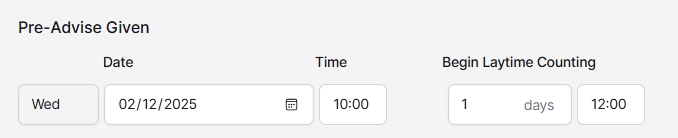
Pre-advise given February 12, 2025, 10:00
Time to count earliest 1 day 12 hrs. after pre-advise
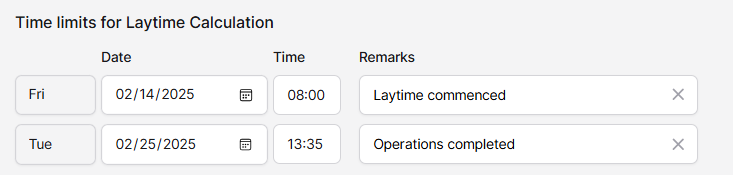
Begin of time counting: February 14, 2025, 08:00
The actual beginning of laytime counting calculates as follows:
Pre advise February 12, 2025, 10:00 plus offset 1 day 12 hrs. = February 13, 2025, 22:00
Begin of time counting: February 14, 2025, 08:00, which is later and so the actual time counting begins at February 14, 2025, 08:00
Example 2:
Pre-advise given one day later on February 13, 2025, 10:00, all other conditions unchanged:
Time to count earliest 1 day 12 hrs. after pre-advise
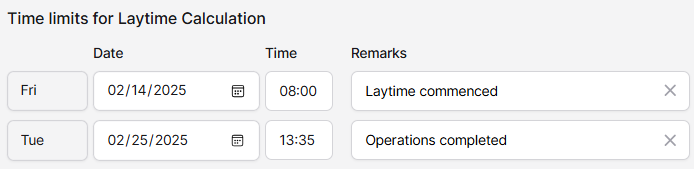
Begin of time counting: February 14, 2025, 08:00

The actual beginning of laytime counting calculates as follows:
Pre-advise February 13, 2025, 10:00 plus offset 1 day 12 hrs = February 14, 2025, 22:00 hrs.
Nominal beginning of time counting: February 14, 2025, 08:00
This time the pre advise was given too late and thus the actual time counting begins on February 14, 2025, 22:00 hrs.
Time Limits for Laytime Calculation
These very important entries specify when exactly the program shall start and stop counting the time used in this port.
As conditions may vary from charter party to charter party it is absolutely necessary to carefully specify the exact begin and end of time counting for the given conditions.
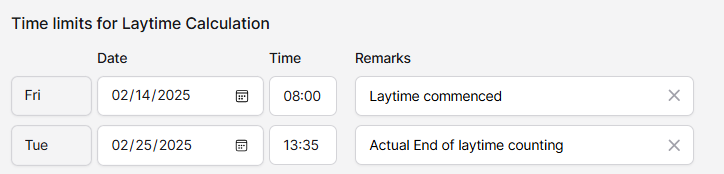
The program will begin counting the time used with the date and time given in the first line and stop counting as soon as the date and time in the second line is reached.
Note: The BV Portal now allows users to enter custom terms to denote the beginning/end of laytime counting (e.g., Begin of Laytime counting, Actual start of laytime counting, Laytime commenced, etc.). These can be entered within the Remarks field manually or selected from the options defined by the team within the Team Settings Page.
There are only two exceptions from this rule:
1. If the pre advise option is used the counting may begin later if the pre advise evaluation leads to a later begin of time counting (for details, see section Pre-advise section above).
2. If the time saved is to be calculated all time saved counting and there is still allowed time remaining when the end date is reached. In this case the program will continue calculating until all time allowed would be used up.
If prior time is used, the begin limit will be set to the actual start of counting and the remark could be changed to, for example, Actual start of laytime counting. In the Statement of Facts, the prior period could be described for example as Half Time counting.
SHEX Unless Used Example
While the exclusion of Sundays/Holidays is handled automatically by the program as in our previous example above, there may be cases in which the automatic exclusion of the entire holiday time is not applicable. Such would be the case for clauses like "SHEX uu" (unless used) or "half to count if used" during weekend days.
The following example made on the basis of the previous sample calculation shows how to insert such periods into the statement of facts.
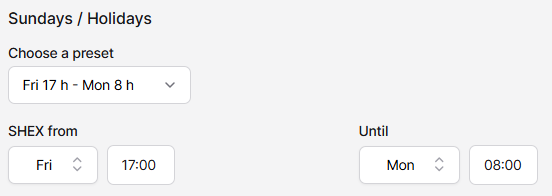
Let us assume that we have normal SHEX from Friday 17:00 until Monday 08:00 not to count unless used. Further we will have a working period on Saturday from 09:00 until noon followed by a one-hour meal break until 13:00 and a second working period after meal break until 16:00.
Just for reference again the port description page and the statement of facts we've entered before:
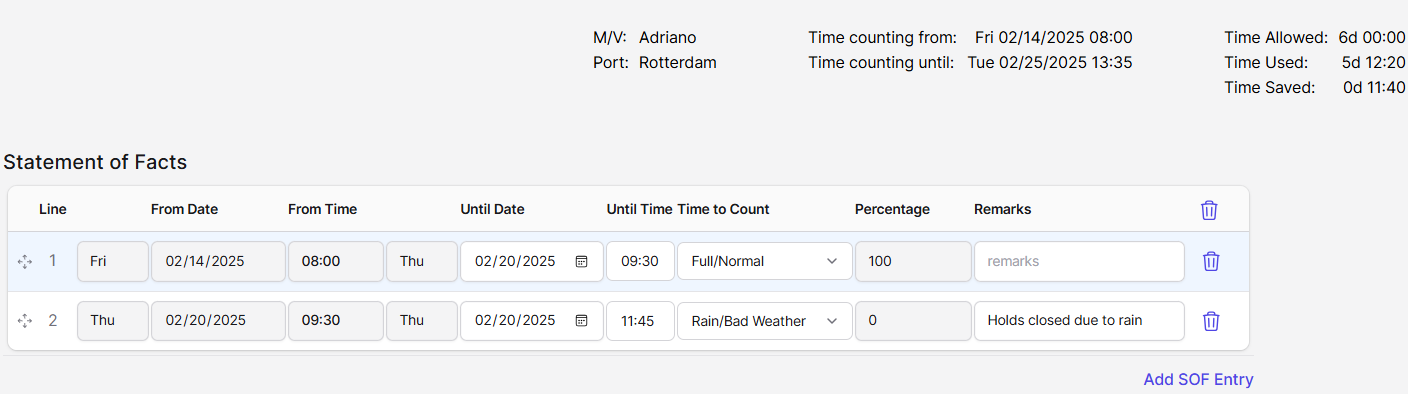
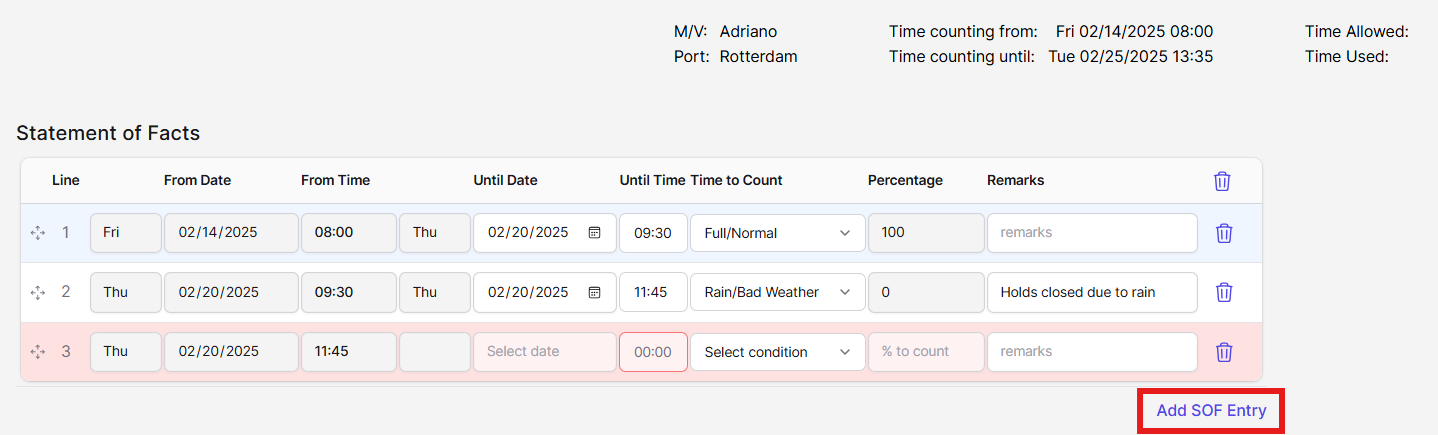
Let us now enter the working periods and the meal break on Saturday. Click the "Add SOF Entry" button to get a blank entry line added to the SOF:
Now click the cursor on the left-hand side and drag it to where you want to add the in-line entry. In this case, the top line:
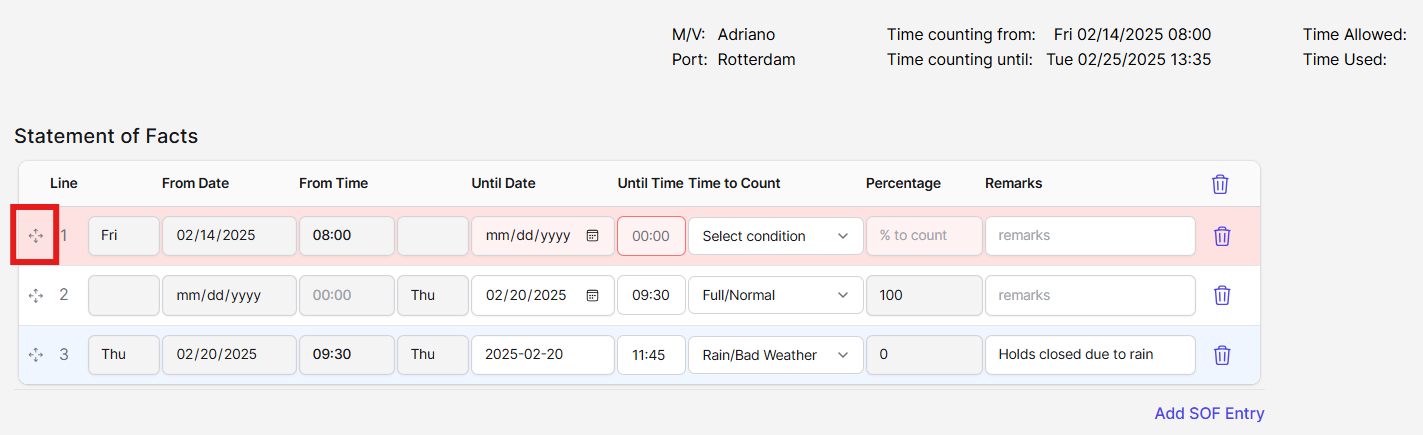
Note: Whenever you add a line to the SOF, the "From Date" and "From Time" will be auto populated by the "Until Date" and "Until Time" from the previous line. In the case where you're adding an entry to the first line, these field will populate from the date/time you specified laytime to commence on the Port Details page.
Enter the date “15” the time “9” and specify “F” for Full/Normal counting for the end of the normal calculation which at the same time is the begin of our holiday working period.

Insert and drag again
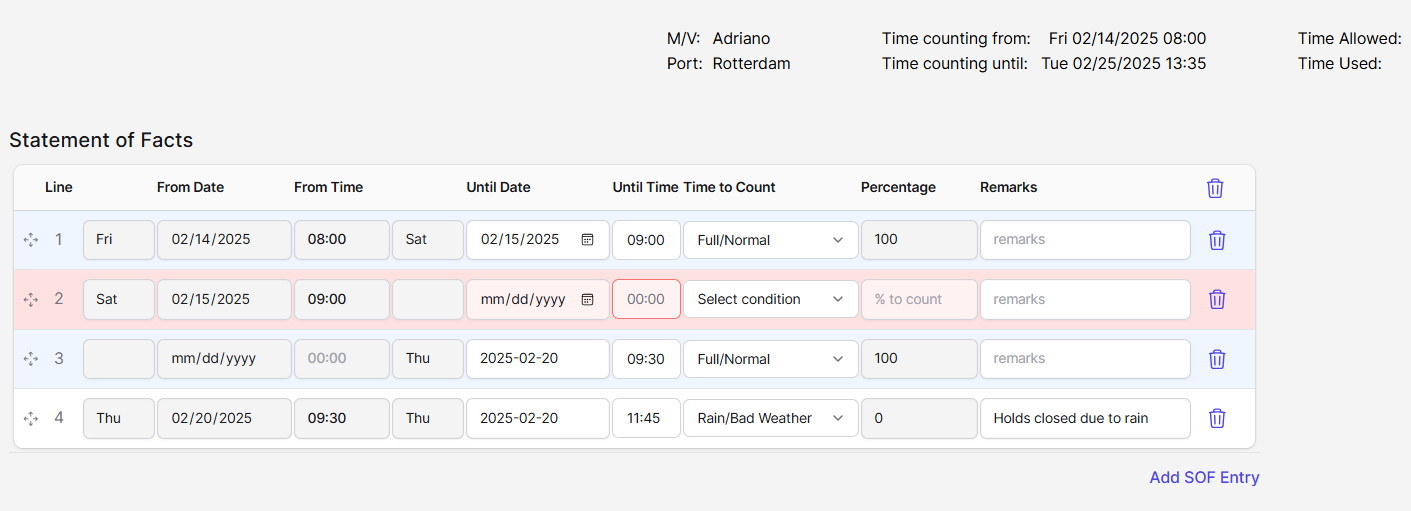
Now enter the first working period until the meal break at 12:00 and select Full even if S/H as the counting code. This instructs the program to calculate the time until 12:00 on Saturday as time used even though the time from Friday 17:00 until Monday 08:00 would normally not count.
Continue to enter the next lines for the Saturday working periods:
until 13:00 Not to count (meal break)
until 16:00 Full even if S/H (second working period)
By now your input screen should look like this:

Note the first line: until Sat, 09:00. This indicates that until this time the laytime will be calculated normally; that is, until Friday, 17:00 full and between Friday, 17:00 and Saturday, 09:00. not to count as specified with the SHEX option in the Port Details page.
The second line then includes the first shift on Saturday until the meal break at noon.
The third line specifies the meal break, and finally the fourth line includes the second shift from 13:00 until 16:00 as full to count.
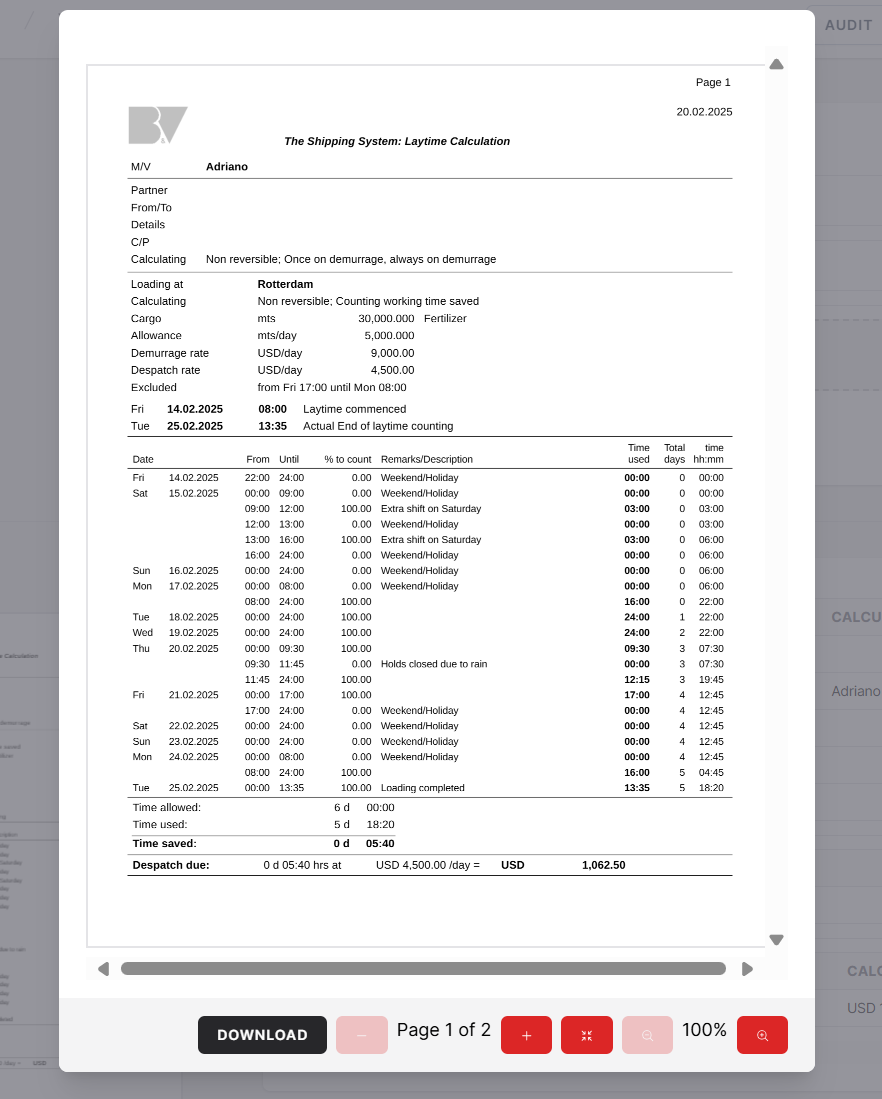
To check the results click Save and maximize the PDF print. Note the marked lines in the sample printout which exactly reflect our example with the two working periods on Saturday.
A final hint: Under certain conditions, for example many working periods during weekends which are to count and few remaining (excluded) weekend times, it may be easier not to use the automatic SHEX options at all but rather to enter the remaining non-counting weekend periods manually in the statement of facts.
Customary quick despatch (CQD)
The BV Portal includes a Customary Quick Despatch option (sometimes also referred to as fast as can or detention calculation).
The calculation is rather simple: There is no despatch, no time allowance and none of the more complex options like partial weekend exclusions. The time spent in the port simply does not count unless there are conditions which allow to charge damages for detention.
The program reflects this by changing the appearance of the port detail screen slightly:
The time allowance fields and the time saved clause selection are disabled because these do not apply and the wording changes from demurrage to detention.
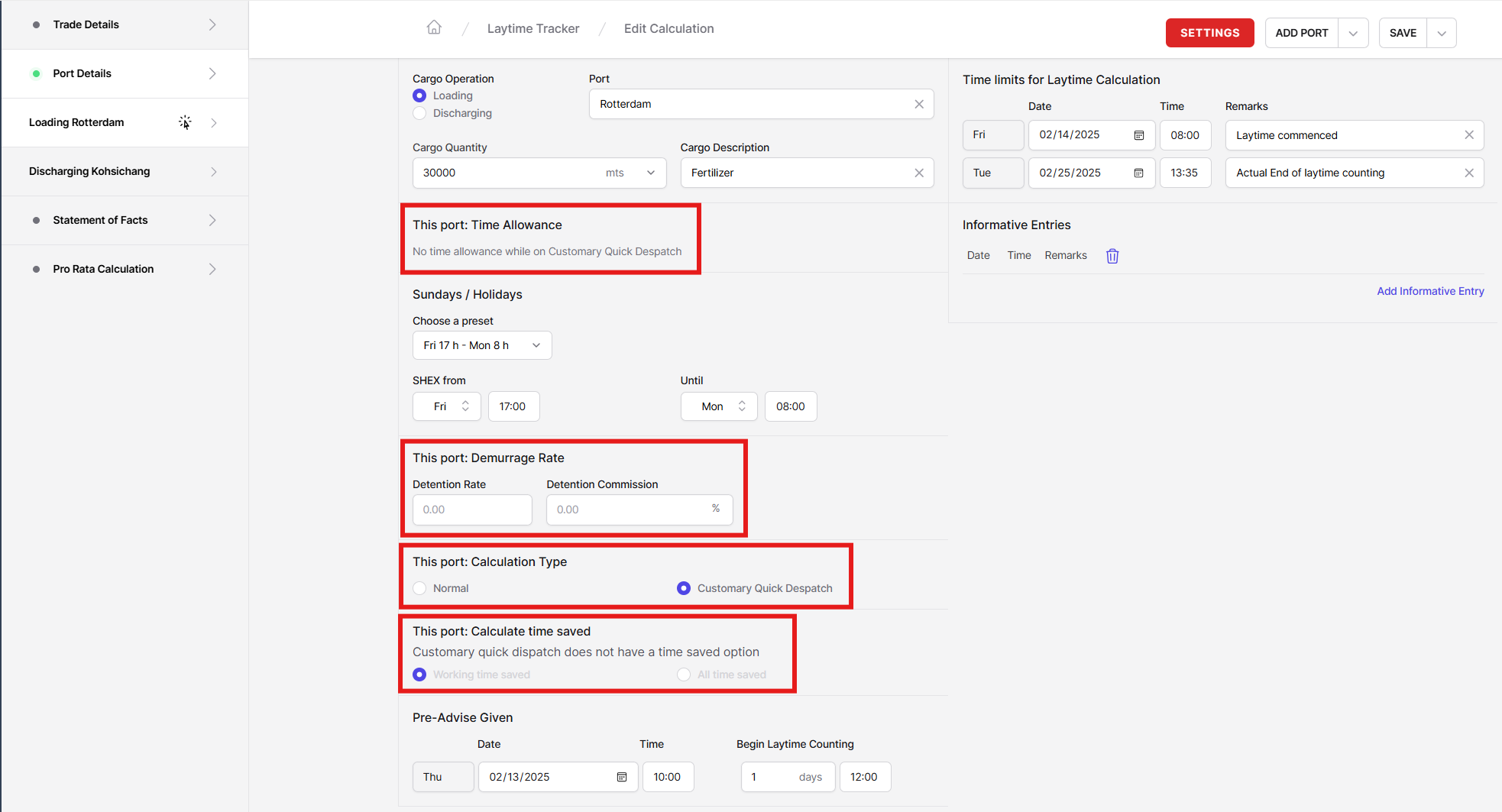
Naturally this option is only available for ports which are calculated non-reversible. The selection of options in the statement of facts also limits to three basic options:
Normal operation: no detention
Full detention: The full detention rate applies
Partial detention: A fraction of the detention rate applies.