
SSO Configuration Guide
SSO Configuration for Multi-Tenant Customer in B&V Portal
B&V uses Microsoft Azure’s Entra ID platform (formerly Azure Active Directory or “Azure AD”) to support Single Sign On (SSO). Our application supports the OAUTH2 SSO method.
The B&V portal is accessible via the Login button on the B&V homepage, which directs a user to https://portal.burmester-vogel.com. On this page a user has the ability to register for an account, sign in with a username and password, perform a password reset, or “login with SSO”.
|
|
|
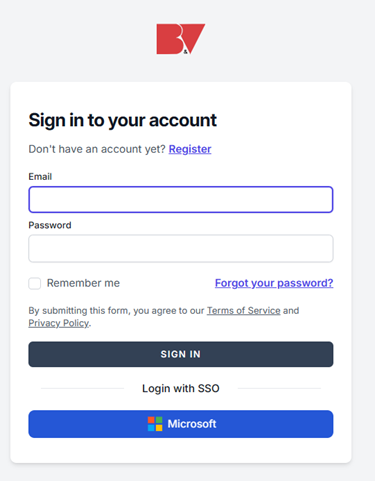
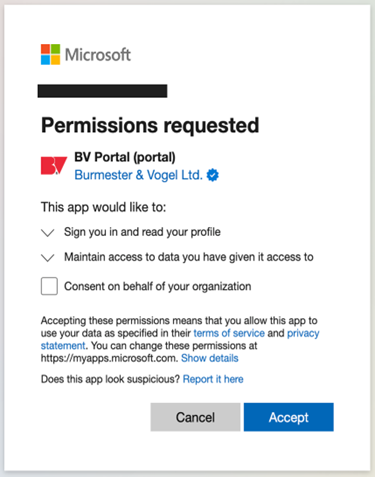
When a user clicks on the “Login with SSO” link on this form, we route them to an Azure page where they are asked to give our app permission to access their data. Once user clicks Accept, provided that they have activated their account on B&V, they can log into the application on future sign ins by clicking on the Login with SSO link. There is no need to whitelist our app in their Azure Entra beforehand.
SSO Configuration for Single-Tenant Instances of B&V Portal
Part 1: Create a New Microsoft Azure Entra App Registration
- Log into your Microsoft Azure portal at https://portal.azure.com.
- Select Microsoft Entra ID
- Under the Manage section, select App registrations and then New registration
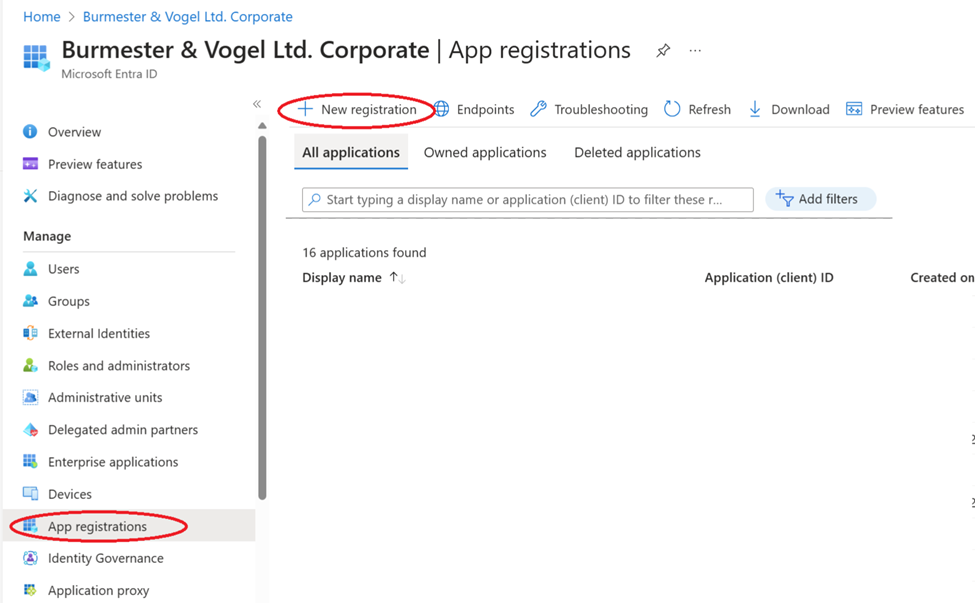
- In the Register an application form, specify the name for the app.
- Under the section Supported account types: Who can use this application or access this API? select the single tenant option Accounts in this organizational directory only (Burmester & Vogel Ltd. Corporate only - Single tenant)
- For Redirect URI, select the platform “Web” and set URL to the Reply URL for your single tenant: https://yourcompany.burmester-vogel.com/azuread/callback
- Click Register (Note: this step can only be done after B&V has set up your single tenant deployment)

Part 2: Create a client secret
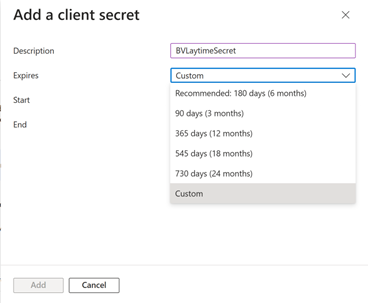
- Under App registrations, select BV Laytime app, then select Certificates & Secrets -> New Client Secret
- Add a description for the secret, set it to the longest expiry date that your IT allows (e.g. 24 months), and click “Add”
Part 3: Send Configuration Details to B&V
Upon completion of Part 2, email info@burmester-vogel.com with the following 3 items:
- Your Microsoft Azure Tenant ID (Home -> Microsoft Entra ID -> Overview -> Tenant ID)
- Application (client) ID (App registration -> BV Laytime App -> Overview -> Application (client) ID)
- Value field from the Client secret
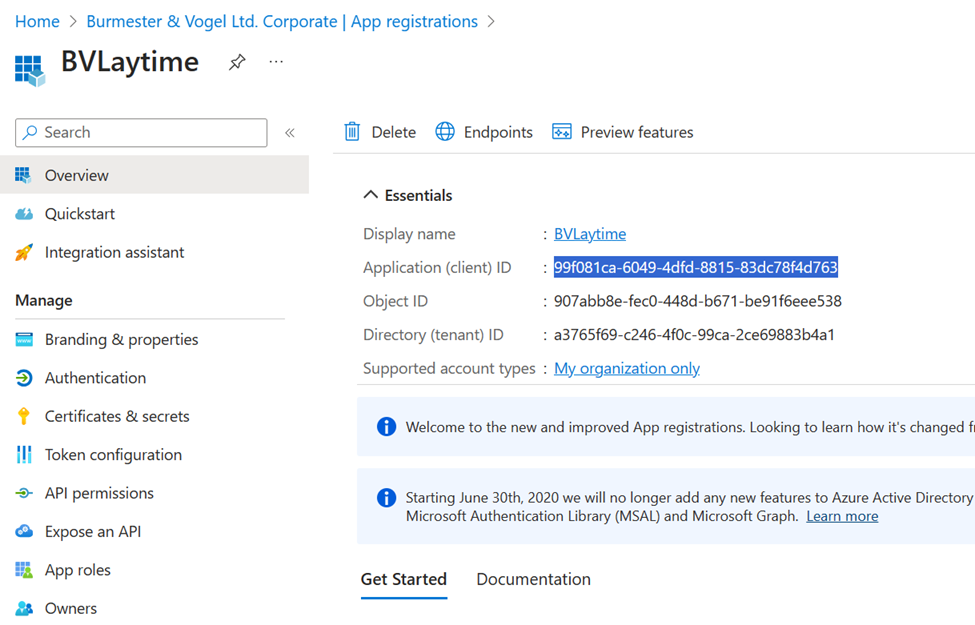
Part 4: SSO Deployment
Once B&V receives the data required from Part 2, we will deploy the single tenant application and notify you.
Upon notification that the system has been deployed, go to your login URL (https:// yourcompany.burmester-vogel.com) and verify you are able to log in.
Note: the system does not have a Logout URL.
Further Information
For additional information regarding B&V’s SSO Configuration Guide, contact Burmester & Vogel at info@burmester-vogel.com or +1 (617) 840-8563.