License Management
The Team Settings page allows you to manage user licenses and configure default settings which apply to all users when creating new laytime calculations. To navigate to this page, click on your user icon in the bottom left of the page and select "Team Settings" from the menu.
License Management: User Roles and License Types
Users can be assigned various roles to access the B&V system. Depending on the access rights these allow a user to perform the following actions:
- Edit - Create, edit and delete laytime calculations
- View - Search and view a laytime calculation, including printing and downloading PDF documents
- Manage users - Add new users and modify or remove access for existing users
The license types available are shown in the system below.
| License Type | View | Edit | Manage Users |
| Owner | ✔️ | ✔️ | ✔️ |
| Administrator | ✔️ | ✔️ | ✔️ |
| Editor | ✔️ | ✔️ |
|
| Viewer | ✔️ |
|
|
| IT Administrator |
|
|
✔️ |
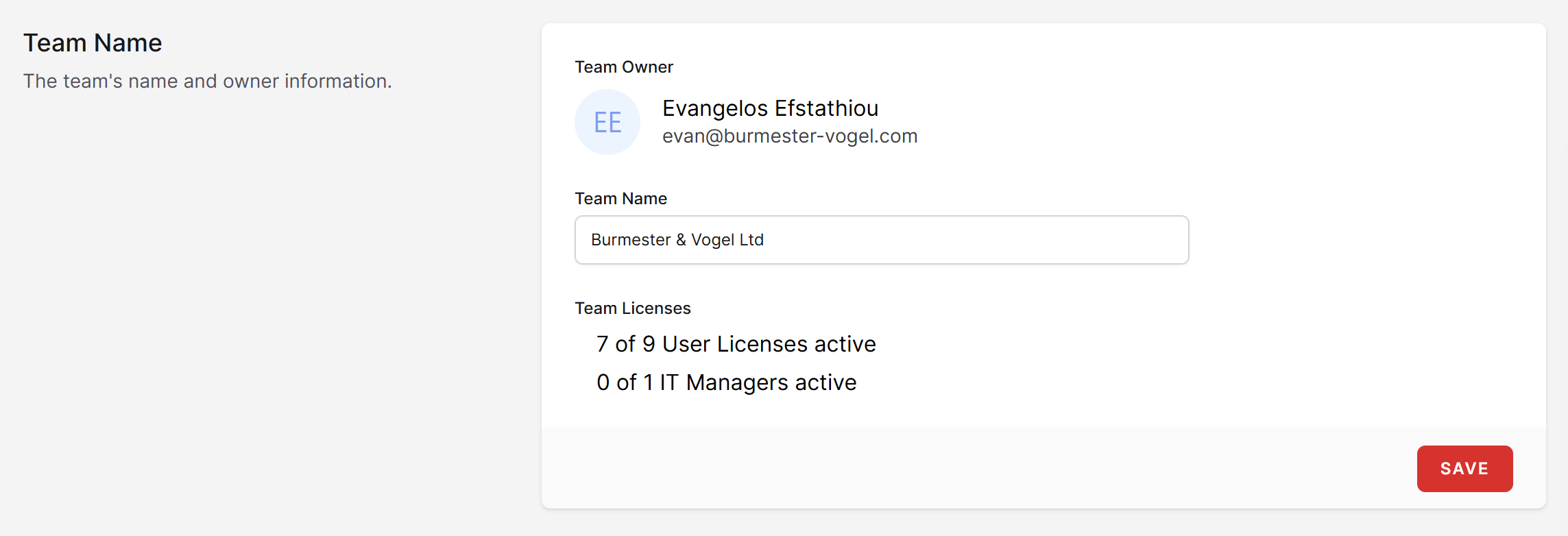
The Team Name section shows:
- Team Owner: Primary point of contact within your organization for administering your team's access to the system.
- Team Name: The name of your company or, if your organization has multiple teams in the system, the name of your division.
- Team Licenses: The number of active user licenses and IT Manager licenses for your team. Any license type with Edit rights uses a User License, while a limited number of Viewer and IT Administrator licenses are provided to each team at no additional cost.
License Management: Add, Remove, or Reassign Users
To add a new team member to the system, navigate to the Add Team Member section of the Team Settings page. From here, enter in the user's E-mail address, select a Role from the available license types, and click "Add".

Once a team member is added, they will appear in the Pending Team Invitations section of the Team Settings page. They will also receive an e-mail notification inviting them to activate their account. To revoke the invitation, click "cancel".

All active users appear in the Team Members section of the Team Settings page.

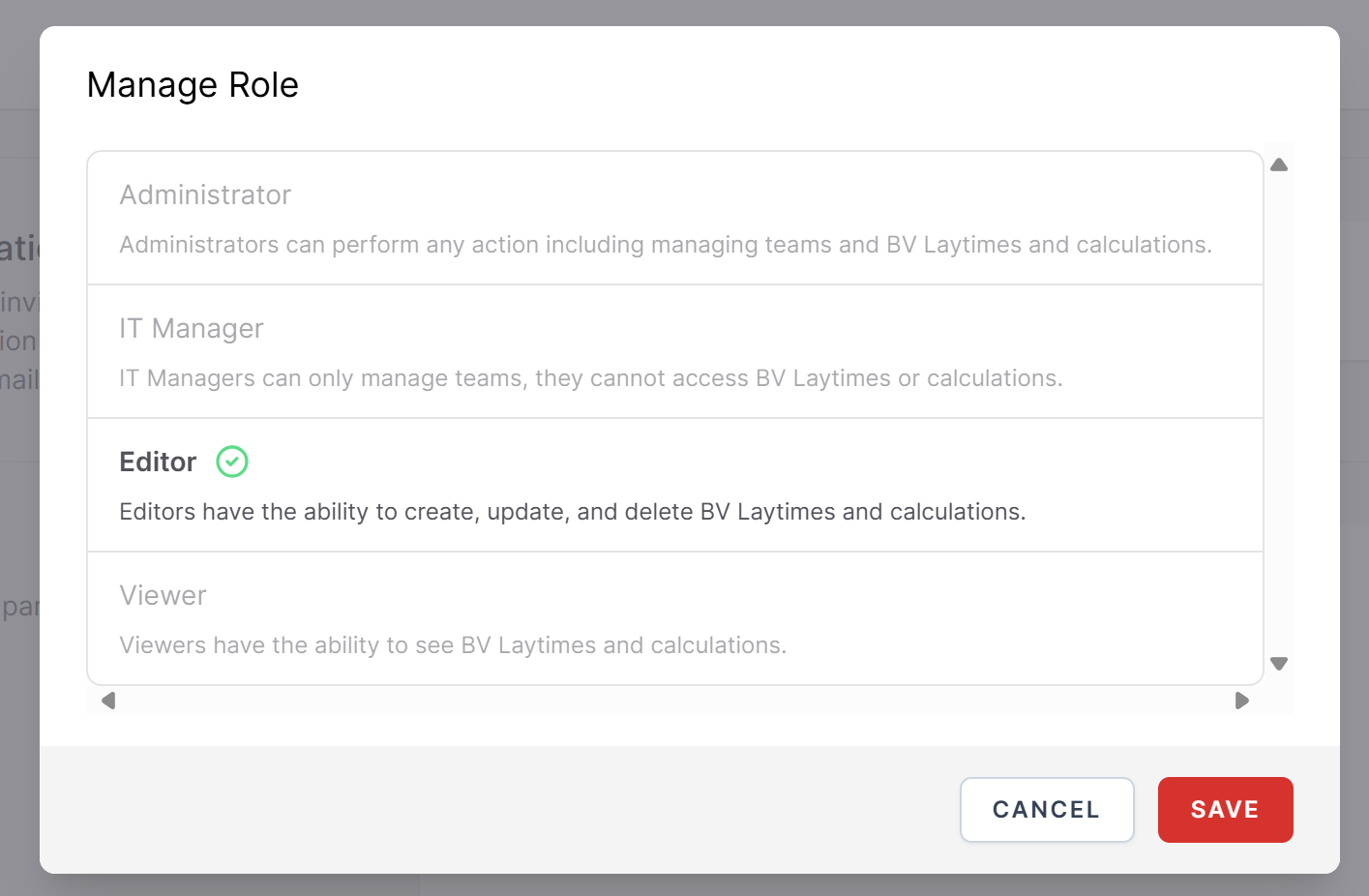
To change a user's access rights to the system or reassign a license to another user, click on the Role to the right of the user's name. This will bring up the Manage Role screen shown below. Modify the user's role and click "Save". To revoke a user's access rights to the system, click on the "Remove" icon shown to the right of the user's name.