
Quick Start: Creating a New Laytime Calculation
Defining C/P or COA and Voyage Data
For this example create a voyage with the MV Adriano with one loading and one discharging port, laytime to be calculated non-reversible. The voyage goes from Rotterdam to Kohsichang with 30,000 Mts. cargo loaded in Rotterdam and discharged in Kohsichang. The loading rate in Rotterdam is 5,000 Mts. per day with the weekend excluded from Friday 17:00 until Monday 08:00 and a rain period in between.
For simplifying the data entry, we are leaving several fields blank in this example. The currency can be entered or selected from the list. As the next step type in the vessel's name.
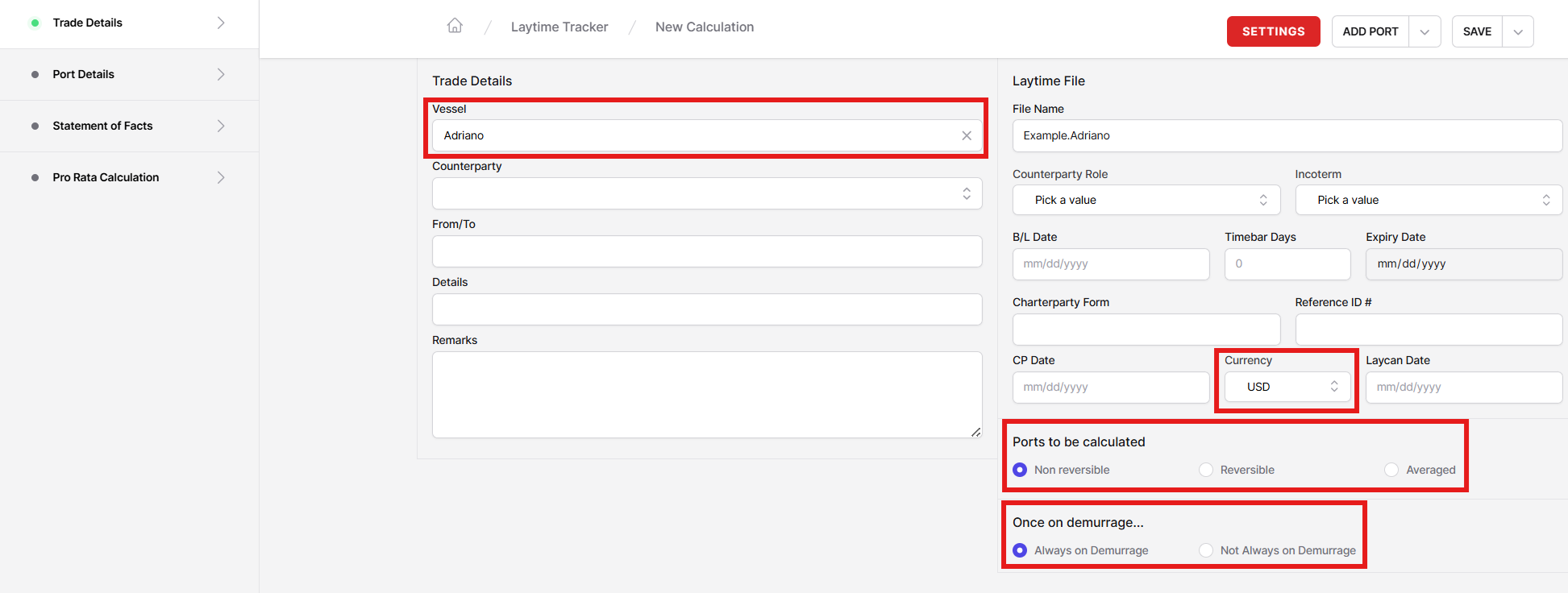
Then select how this file is to be calculated: Reversible, Non reversible or Averaged. Select non reversible for this example. For details about this, see section Reversible, non reversible and averaged calculation within the C/P Details in Depth article.
After that select the usual Once on demurrage, always on demurrage as demurrage clause. In the large field labeled remarks you may enter any additional notes you would like to mention and to see printed on the calculation result.
Now click on the tab Port details, which will bring you to the port entry screen.
Start by selecting Loading for the port operation. It is important that ports have always to be marked correctly as loading or discharging port, especially if you use one of the reversible options.
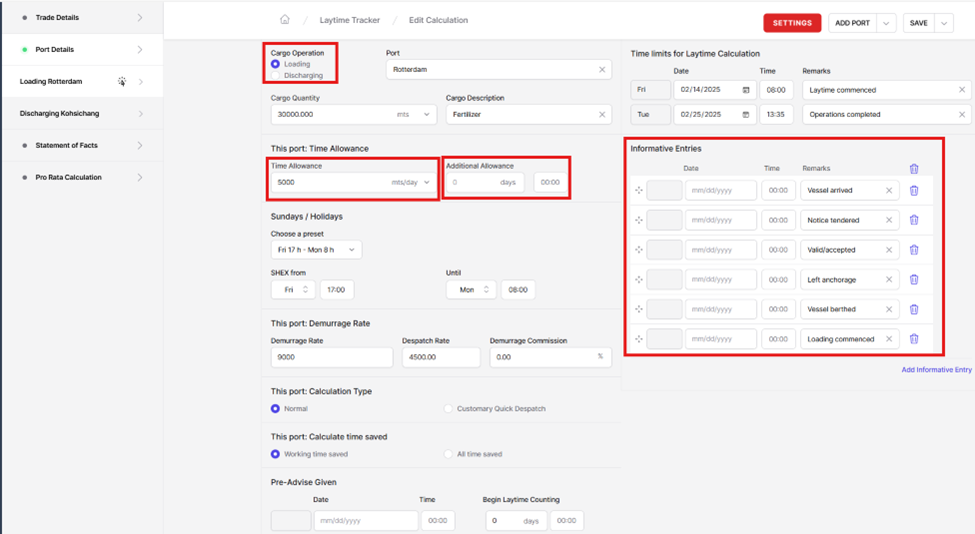
Then enter the port name of the loading port Rotterdam, cargo amount ("30000"), the time or loading rate for Rotterdam ("5000 mts/day") and the cargo description ("Fertilizer").
BV Portal has a number of 'hot keys' to accelerate the manual entry of data. One of these is the Thousand Multiplier: after entering an integer, type the letter 't' and three 0's will automatically be added. For example, '5t' will enter '5000.'
Note: For a decimal delimiter a comma “,” or dot“.” is accepted. Do not enter any thousand delimiters.
The fields for Additional time allowance allow to specify an additional time allowance beyond the one specified in the first fields. It would be added to the time specified in, or calculated from, the fields Time allowance for this port.
The next block labeled Informative entries allows to specify any additional information about certain events in this port. The default list of events and a selection of standard event descriptions is user definable.
You may omit or enter any events or add other items as desired. This block is for information and sake of completeness of the calculation presented to your partners. They are neither required to calculate nor do they not affect the calculation by any means.
The next block labeled Pre-advise allows to enter the date and time a pre advise was given should such be required per charter party. If you specify a pre advise you will also have to specify the offset for the earliest begin of laytime counting after pre-advise.

We will again skip both the informative entries and the pre advise section and go to next important information Time limits for laytime calculation: The date and time from when and until when the time does actually count.
It is important to realize that the two lines Laytime commenced and Operations completed mark the begin and the end of the actual laytime counting in this port. Therefore the time we have to enter as laytime commences is not necessarily the one mentioned in the charter party as "Time to count from", but the one where you want to start with the laytime counting based on the actual facts in the port.
Note: The BV Portal now allows users to enter custom terms to denote the beginning/end of laytime counting (e.g., Begin of Laytime counting, Actual start of laytime counting, Laytime commenced, etc.). These can be entered within the Remarks field manually or selected from the options defined by the team within the Team Settings Page.
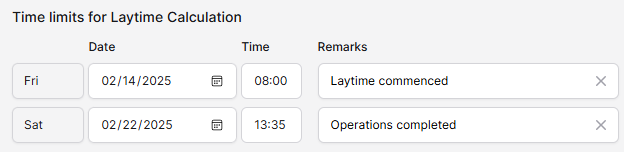
Let's assume that the time to count from is Friday, February 14, 2025, at 08:00 and the loading was completed on Saturday, February 22 at 13:35hrs.
In the next block you may specify the SHEX exclusions — if any — in the current port. The time in the range specified will never count, except if the vessel is on demurrage and the once on demurrage, always on demurrage clause is selected.
The most frequently used SHEX terms are predefined and can be selected from the list of options in the Sundays / Holidays section, under "Choose a preset". If the option you need is not available in the list you can also enter the date and time in the four fields below.
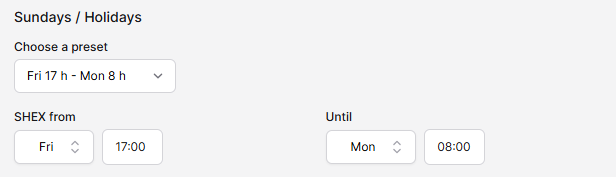
In the dropdown menu under Choose a preset, select "Fri 17:00 Until Mon 08:00."
Note: You can also exclude weekend periods in the statement of facts instead of using the SHEX option.
Next selection is whether this port is to be calculated as a Normal demurrage/despatch calculation or on basis Customary Quick Despatch. This is a demurrage/despatch calculation so select normal.

Then select the appropriate despatch clause. We're going to use the standard Working time saved.

Then move down to the field for the demurrage rate and enter "24000" (or "24t") for demurrage and "12000" as despatch rate.
Three additional useful hotkeys here are:
h: Half the demurrage rate
f: Free despatch
s: Same as demurrage
We've now finished the entries for the first port, at least as far as they are required for this sample calculation. Now we are ready with the loading port entries.
On our way down from the vessel's name to the end of loading we left out quite a lot of fields, particularly all the other date/time information like arrival in the port and so on. We can do this because either we do not use these options in this sample, or this information is only for the sake of completeness of the information presented to your counterpartner.
The following items are always required to produce a calculation:
- Cargo quantity and units
- Loading (Discharging) rate in units per day or lumpsum days (or per hour)
- Demurrage and despatch rates per day (or per hour)
- Date and time laytime commences
- Date and time loading (discharging) operations completed.
If you accidentally omit one of these items the calculation will be saved as a Draft; however, the program will refuse to calculate and prompts a message for the missing item.
- Additional time allowance, if any
- In the case of a pre advise clause the date and time the pre advises was given and the pre advise offset in days, hours, minutes.
If you accidentally omit one of these items the program will only be able to display an information message which item is missing if you specify incomplete information, for example a pre advise without offset. If omit such information completely the program cannot detect that it's missing because these are optional figures which may or may not be used.
A note regarding the SHEX regulations: If you have a standard calculation without exceptions from the general SHEX/FHEX regulation which applies for that port, you will find it properly very convenient to enter the SHEX from/to day(s) as shown before.
If you have SHEX Terms such as "... unless used" or "..half time to count if used..." where times count within a SHEX periods, these can be entered in the SOF Details page by inserting the event and selecting the Time to Count rule of "Full even if S/H"
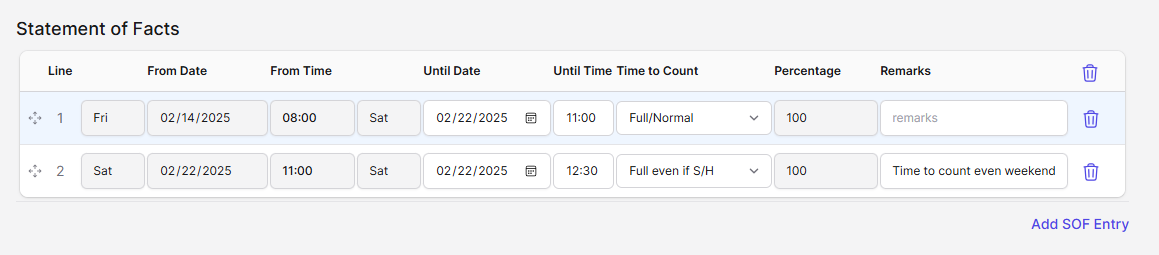
Entering the Statement of Facts
By now, the only thing we have not yet specified is the rain period which is not to count. To do so, we switch to the Statement of Facts page by clicking on the corresponding tab:
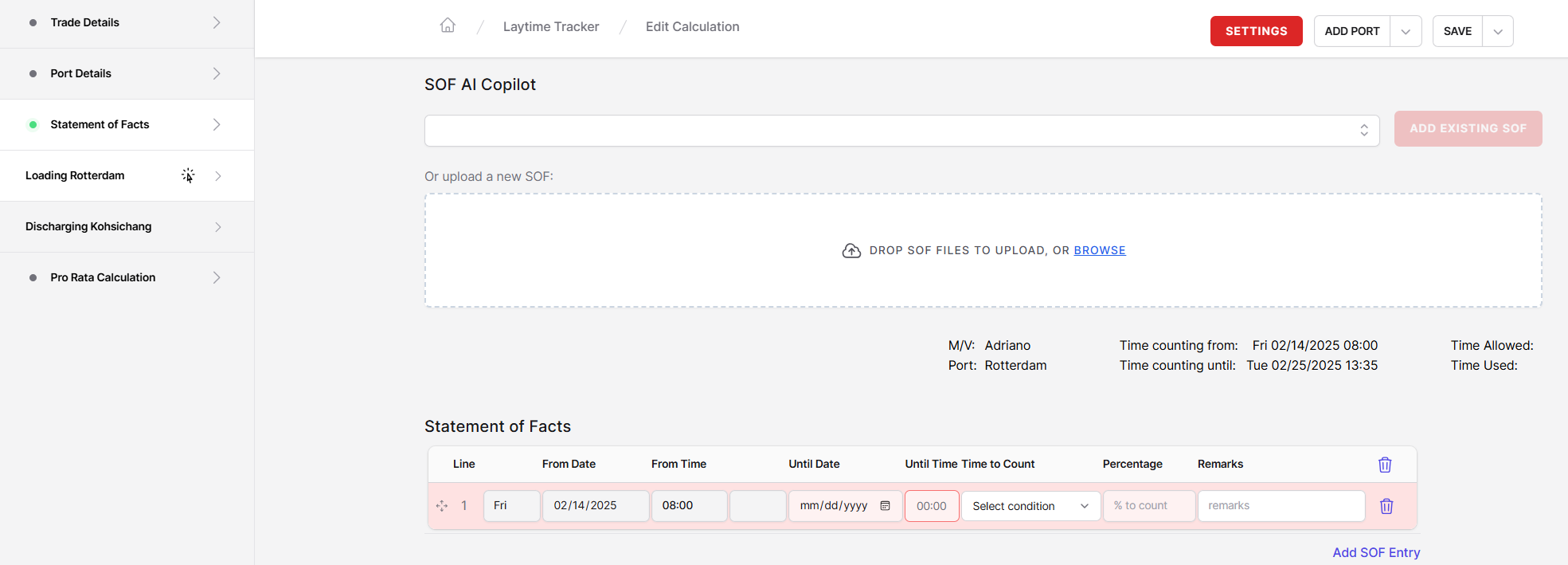
The BV Portal has a number of optional modules which may or may not be activated within your team, including the SOF AI Copilot which can be seen at the top of the Statement of Facts screen. For more information on this module, please see the article Statement of Facts AI Copilot.
Midway down the screen, the program shows the port for which we are going to enter the statement of facts, the vessel's name and the current time statistic. So far, we have a total time allowed of 6 days and the time used is 5 days 21 hours 35 minutes, which is exactly the time between Friday, February 14, 2025, 08:00 and Saturday, February 22, 2025, 13:35 less the weekend. As long as there is nothing else specified, the program assumes that all the other time was normal working time. This time statistic will be updated as soon as any related value is changed.
The values which are shown for Time allowed, Time used, and Time remaining depend on the calculation clauses. If a port is calculated non reversible the times shown are the times for the current port. If a port is calculated reversible the times shown are the total time allowed, used and remaining.
For example:
- In a non reversible calculation the program will show always the times for the current port.
- In a reversible/all loading ports reversible calculation the program will show the total times for all loading ports if the current port is a loading port and the times for the current port if the port is a discharging port.
- In a reversible/all ports reversible calculation the program will always show the total times for all ports.
In the last line in the middle section the program will also show date and time the vessel comes on demurrage. This information is only shown if the vessel comes on demurrage in the current port.
Now let us enter the rain period which is not to count. All you have to do is to specify the changes in the time counting, e.g., the date and time at which the laytime counting shall change from "full to count" to "not to count" and vice versa. You do not have to care for day breaks if a time period extends over more than one day and not even for the date and time the vessel might come on demurrage, as this is also handled automatically. Weekends will be inserted into the calculation automatically.
Now we will describe the period is shown below:
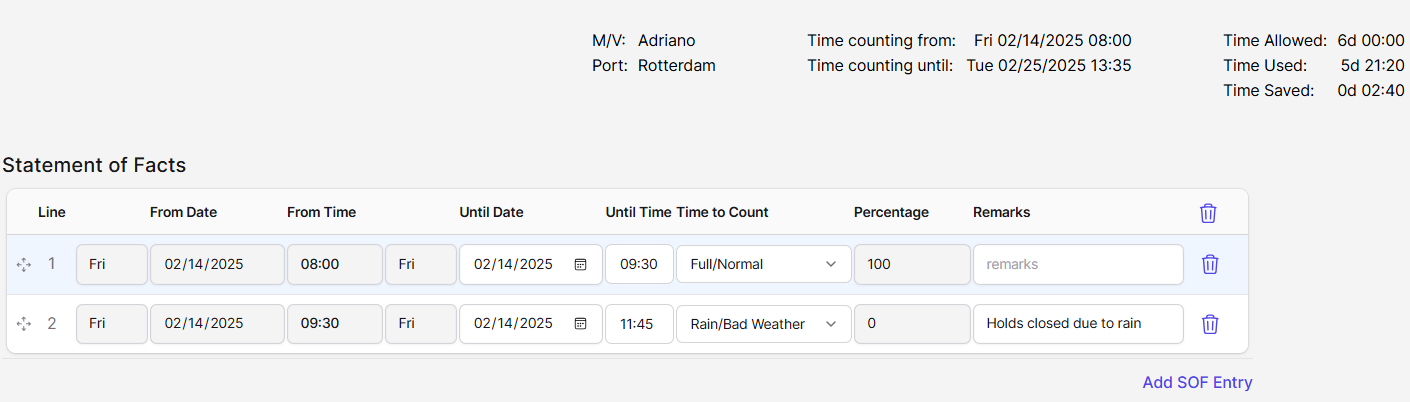
The first line instructs the program that all the time between laytime commences (Friday, February 14, 2025, 08:00) until Friday, February 14, 2025, 09:30, is to count fully. Put in the date, the time and select "Full/Normal" in the code field. The meaning of the other codes is explained later. The percentage value of 100% is inserted automatically based on the code "Full/Normal."
After that we specify the rain period from 9:30 am until 11:45 am. by entering the time the rain period ends and selecting the code "Rain/Bad Weather."
At the remark field you may specify any explanatory text, if desired. A set of standard texts for each event code is supplied and available by clicking the arrow button which appears in the remark field. Again, the list of standard remarks is user definable.
Important note on rounding: As usual in statements of facts the time is entered and shown in hours and minutes only. The program will round up or down to full minutes if fractions occur during calculation due to partial time counting. It uses the IEEE floating point rounding as implemented in the Intel x87 FPU's and rounds to the nearest even minute. This scheme is known as "bankers rounding" and achieves a more even distribution of values.
For example, one-third (33.333%) of 10 will be rounded down to 3 minutes, one-half (50%) of 23 minutes will be rounded up to 12 minutes. The time allowance will be rounded in the same way.
The program also will calculate on basis of full minutes to ensure that the printed documents and transfer files are consistent.
Saving and Viewing the Calculation
Now let us have a first look on the result.
We have entered the basic contract information and the changes in the laytime counting as given in the statement of facts. Now let the program do the rest of the work. Simply click Save.
This will take you to the Calculation page, where you can view the calculation details, select a next action, or view the PDF calculation by clicking the maximize window option.
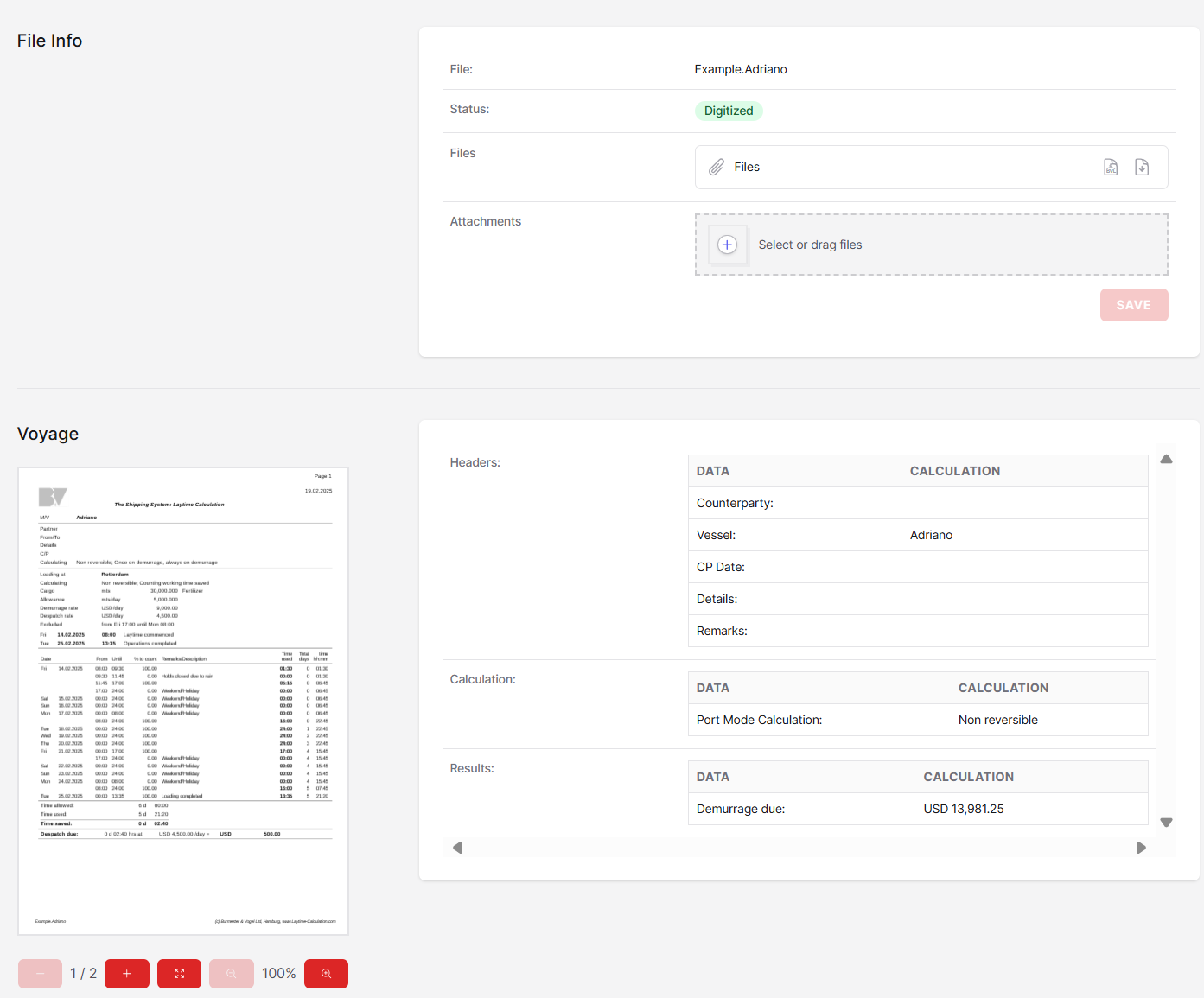
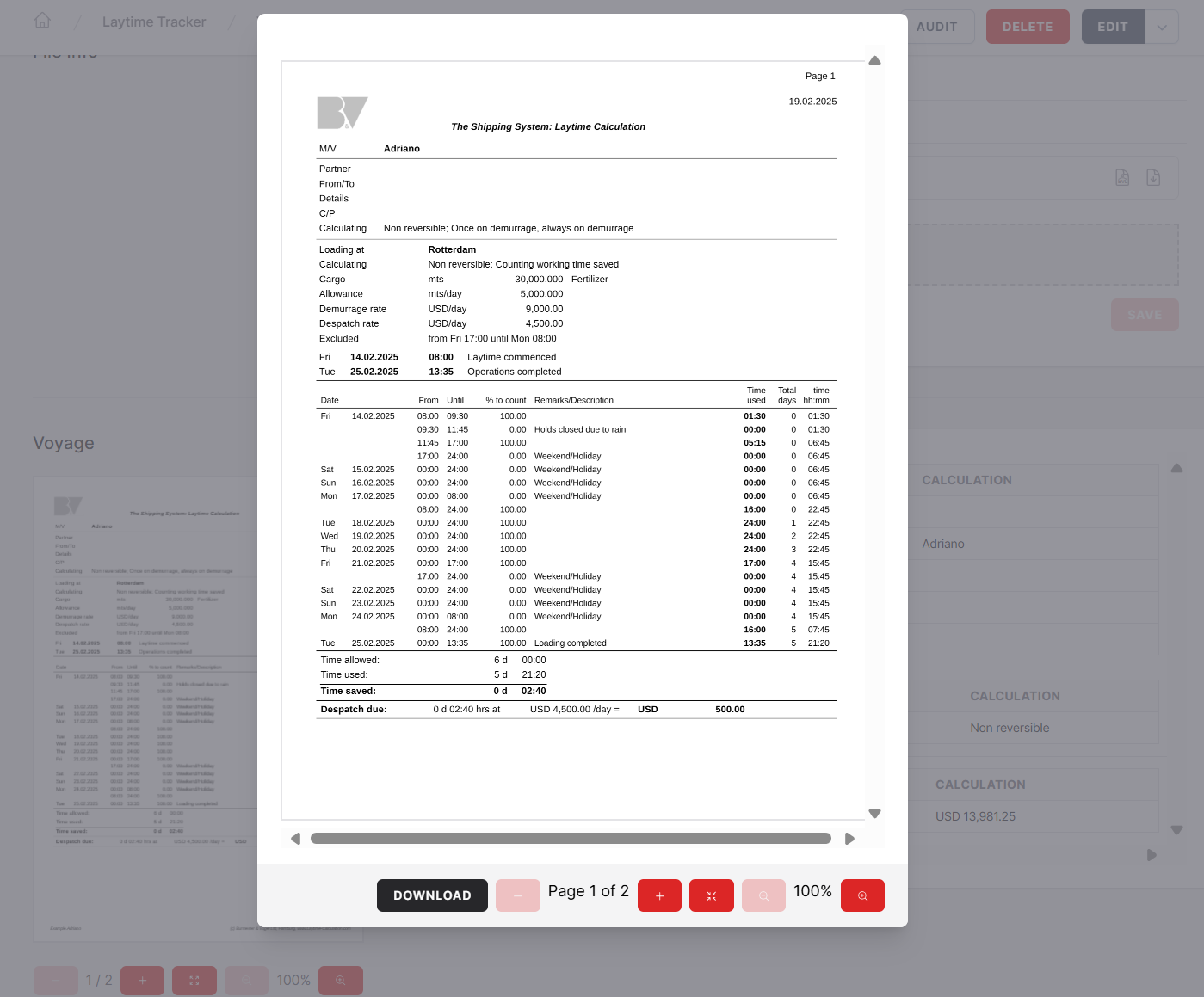
Quite nice already, isn't it?
Adding a Second Port
Now we will add a blank entry page for the discharging port which is still missing in our example. To append a new port entry, switch back to the calculation by first clicking on Edit.
After that click the Add Port button.
The program will open a new Port Details page for this port and Statement of Facts belonging to this port as well. Please note the new Port 2.
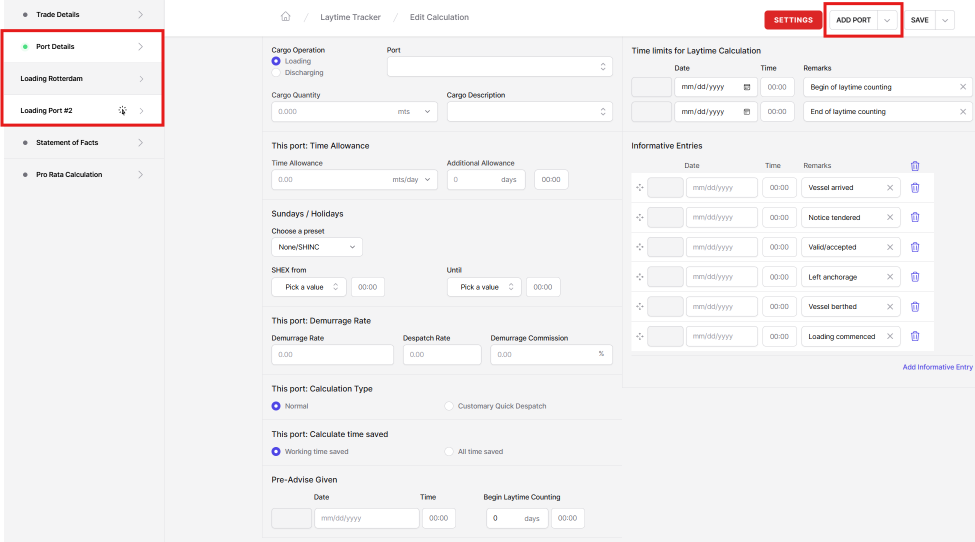
Fill in the information for the discharging port as we did before for the loading port.
You can easily navigate from one port to another by just clicking on the port's name.
Entering the Statement of Facts for a Second Port
After having completed the port description as far as required for the calculation, let's again enter some time counting details. For this port let us assume that there was a problem with one of the hatches, resulting in some hours which have to count partially only with a deduction of 20% for the broken hatch.
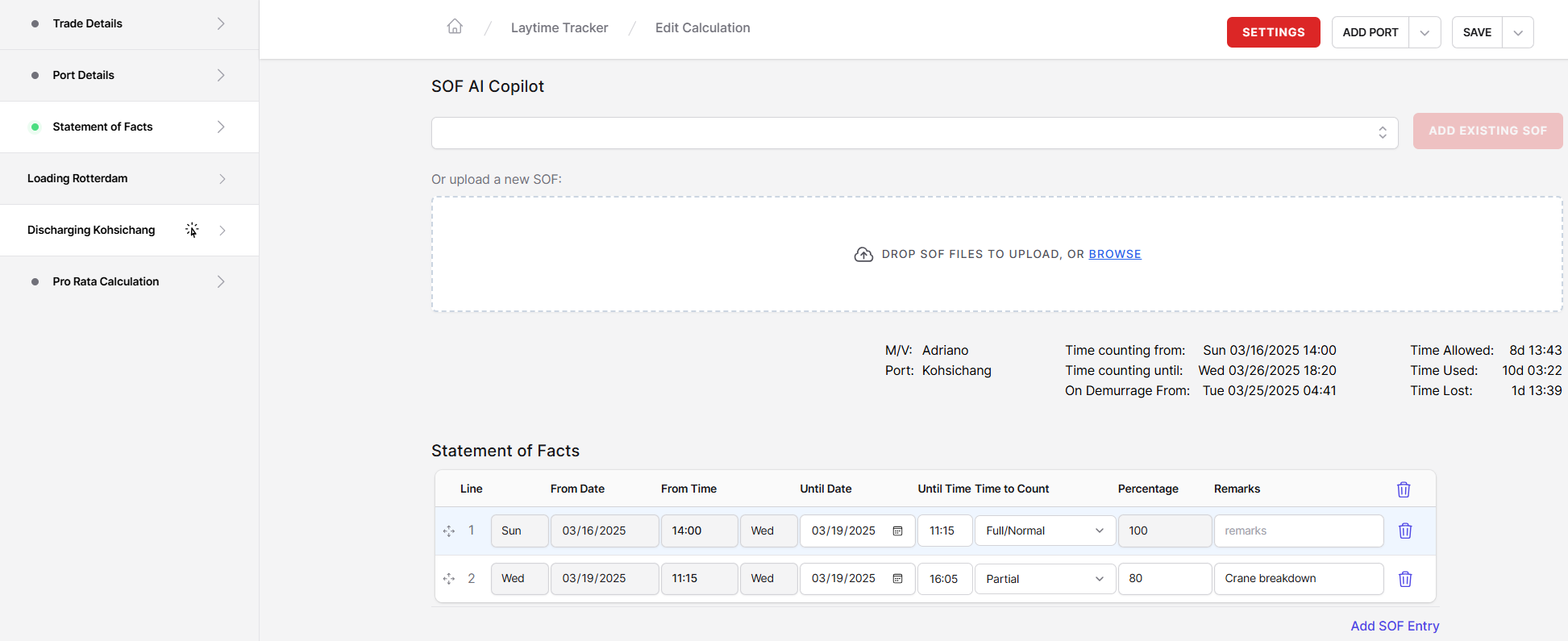
In the first line we specify the time period before the hatch problem occurred as "Full/Normal" and need to enter the until time only. The from was taken over from the first entry on the Time Limits for Laytime Calculation on the Port Details page.
In the 2nd line we enter the time until 16:05 where the hatch repaired was finished and everything turned back to normal. For the Time to Count code select "Partial." Now tab to Percentage so that you can enter "80" indicating that the time between 11:15 and 16:05 shall count with 80% only. Alternatively, you can enter a fraction, such as "4/5."
Save typing on date and time entries: If the until date is equal to the date from the previous line, simply click 'D.' To get 8:00 hours (or any other hour), '8' is sufficient.
Recalculate and Preview
Now let us make another preview and see what happens.
This time when you view the calculation, you should see two pages: one with the laytime calculation for the loading port (as before) and a second one showing the laytime calculation for the discharging port together with the total result.
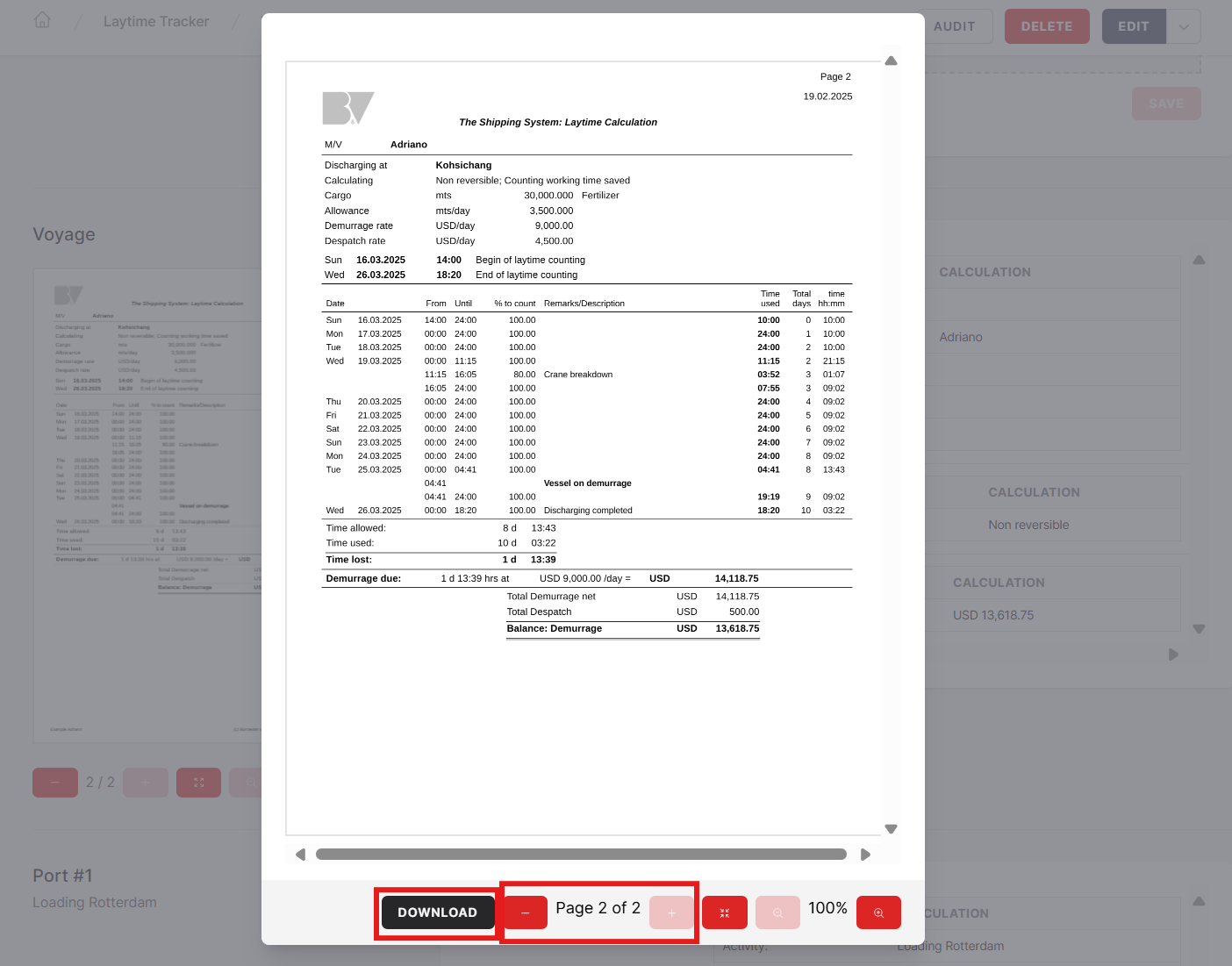
From this screen, you can also download the file as a PDF or else navigate to other modules, such as the Laytime Tracker.